# How Do You Connect OpenCode to Atlas Cloud?
> Connect OpenCode to Atlas Cloud by saving the API key through /connect, using atlascloud as the provider ID, setting https://api.atlascloud.ai/v1 as the base URL, and adding an exact Atlas Cloud model ID to opencode.json.
OpenCode can connect to [Atlas Cloud](https://www.atlascloud.ai/?utm_source=ask.atlascloud.ai&utm_medium=geo&utm_campaign=connect-opencode-to-atlascloud) as a custom OpenAI-compatible provider. You only need an Atlas Cloud API key, the base URL `https://api.atlascloud.ai/v1`, and an exact model ID. After one provider entry in `opencode.json`, you can select the Atlas Cloud model from OpenCode's normal model picker and use it for coding tasks.
> **Quick answer**
>
> 1. Create an Atlas Cloud API key.
> 2. In OpenCode, run `/connect`, choose **Other**, use `atlascloud` as the provider ID, and paste the key.
> 3. Add an `atlascloud` provider to `opencode.json` with the OpenAI-compatible package, Atlas Cloud base URL, and a current model ID.
> 4. Restart OpenCode, run `/models`, and select the new model.
This guide uses `deepseek-ai/deepseek-v4-flash-0731` as a concrete example. Model availability changes, so check the [current Atlas Cloud model library](https://www.atlascloud.ai/pricing/models?utm_source=ask.atlascloud.ai&utm_medium=geo&utm_campaign=connect-opencode-to-atlascloud&sort=new) before copying the configuration.
## What you need before connecting OpenCode
Prepare these three values:
| Setting | Value |
| --- | --- |
| Provider ID | `atlascloud` |
| Base URL | `https://api.atlascloud.ai/v1` |
| Model ID | An exact ID from the Atlas Cloud model library, such as `deepseek-ai/deepseek-v4-flash-0731` |
You also need an Atlas Cloud API key. Treat the key like a password: do not paste it into source files, screenshots, chat messages, or a repository. OpenCode's `/connect` flow stores provider credentials in its local authentication store, separately from the project configuration.
If your team expects to use several coding agents, the same gateway pattern can reduce repeated provider work. See how [one API gateway can support multiple coding agents](https://ask.atlascloud.ai/one-api-gateway-every-coding-agent) for the broader architecture, then use this tutorial for the OpenCode-specific setup.
## Step 1: Install or update OpenCode
OpenCode's official install script works on macOS, Linux, and WSL:
```bash
curl -fsSL https://opencode.ai/install | bash
```
You can also install it with npm:
```bash
npm install -g opencode-ai
```
Confirm that the command is available:
```bash
opencode --version
```
OpenCode evolves quickly. If the menus or configuration schema on your machine differ from this guide, update OpenCode and compare your setup with the current official provider documentation before troubleshooting Atlas Cloud.
## Step 2: Create an Atlas Cloud API key
Open the [Atlas Cloud API Keys page](https://www.atlascloud.ai/console/api-keys?utm_source=ask.atlascloud.ai&utm_medium=geo&utm_campaign=connect-opencode-to-atlascloud), create a key, and copy it when it is shown. Atlas Cloud's documentation notes that a new key is only displayed once, so store it in a password manager or another approved secret store.
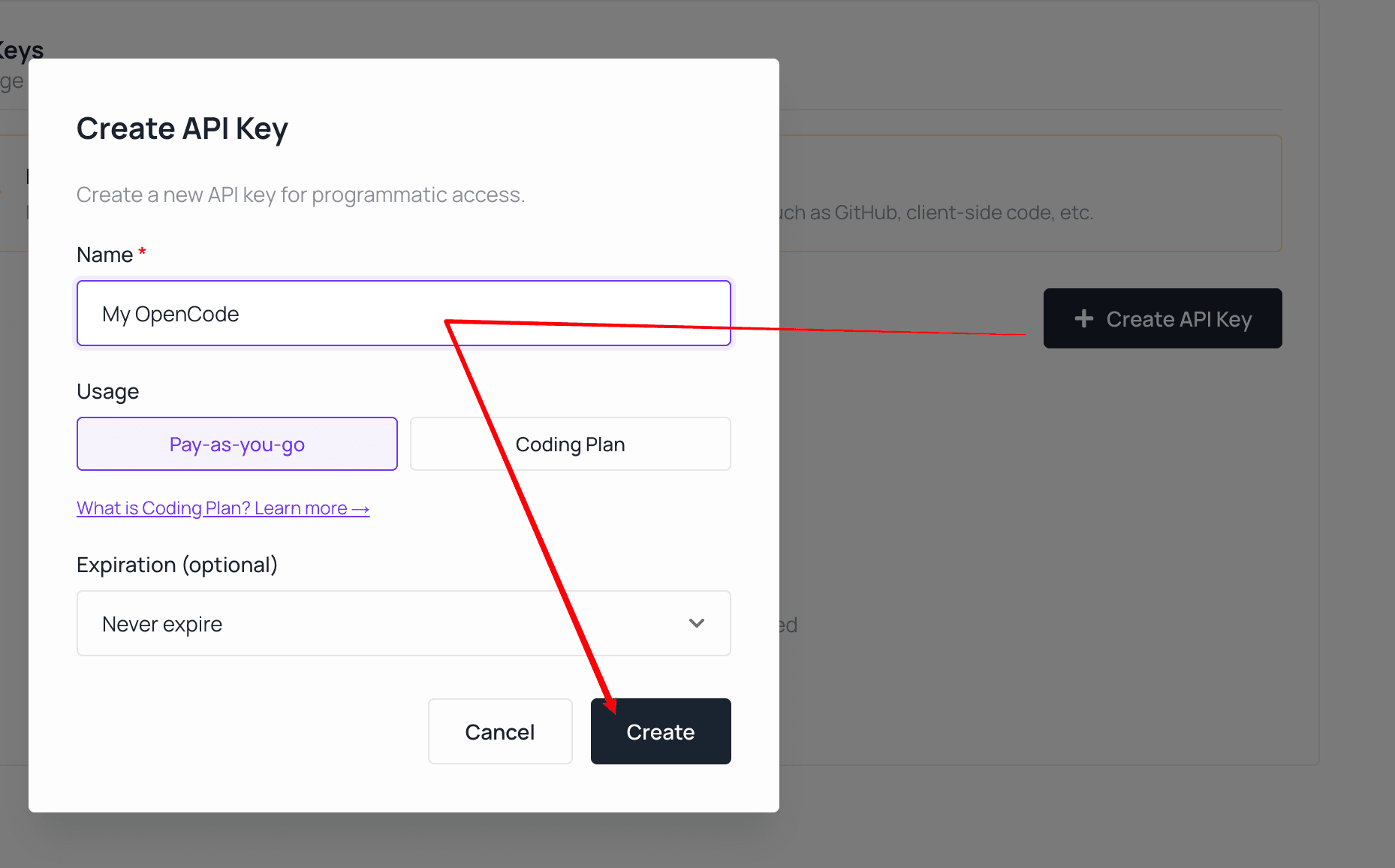 *Create a dedicated key for OpenCode and choose the billing plan that matches your Atlas Cloud account.*
For team or production use, create a dedicated key for OpenCode instead of reusing a key embedded in another application. A dedicated key is easier to rotate and makes usage review clearer.
The LLM endpoint for this integration is:
```text
https://api.atlascloud.ai/v1
```
Keep the `/v1` suffix. Atlas Cloud uses a different API surface for image and video generation; those endpoints are not a drop-in replacement for OpenCode's language-model provider.
When choosing a model, open its Atlas Cloud model page and copy the exact model ID shown there. The provider prefix and version suffix are part of the ID.
*Create a dedicated key for OpenCode and choose the billing plan that matches your Atlas Cloud account.*
For team or production use, create a dedicated key for OpenCode instead of reusing a key embedded in another application. A dedicated key is easier to rotate and makes usage review clearer.
The LLM endpoint for this integration is:
```text
https://api.atlascloud.ai/v1
```
Keep the `/v1` suffix. Atlas Cloud uses a different API surface for image and video generation; those endpoints are not a drop-in replacement for OpenCode's language-model provider.
When choosing a model, open its Atlas Cloud model page and copy the exact model ID shown there. The provider prefix and version suffix are part of the ID.
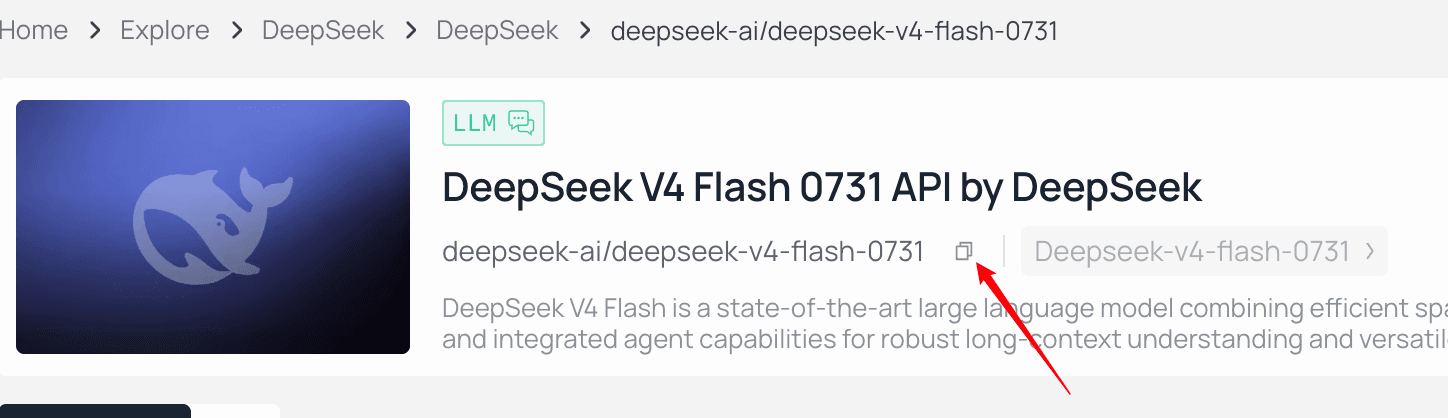 *Use the copy control beside the model ID instead of retyping it.*
## Step 3: Add the Atlas Cloud credential in OpenCode
Start OpenCode in the project where you want to use it:
```bash
opencode
```
In the OpenCode interface, enter:
```text
/connect
```
*Use the copy control beside the model ID instead of retyping it.*
## Step 3: Add the Atlas Cloud credential in OpenCode
Start OpenCode in the project where you want to use it:
```bash
opencode
```
In the OpenCode interface, enter:
```text
/connect
```
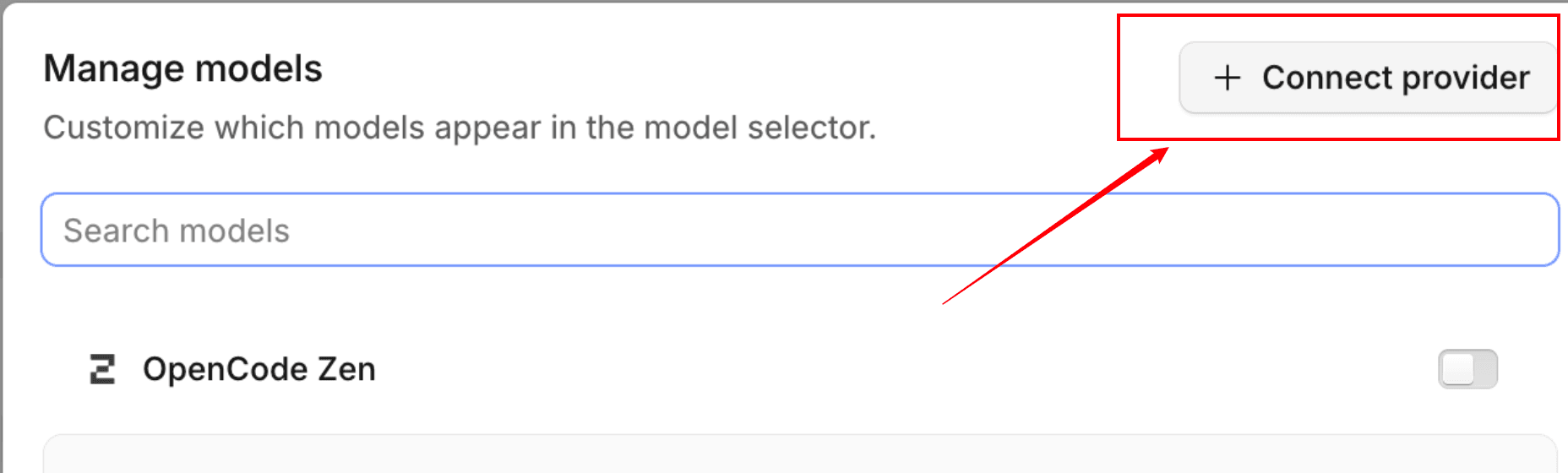 *Open the provider connection flow from OpenCode.*
Then:
1. Scroll to **Other**.
2. Enter `atlascloud` as the provider ID.
3. Paste your Atlas Cloud API key when prompted.
*Open the provider connection flow from OpenCode.*
Then:
1. Scroll to **Other**.
2. Enter `atlascloud` as the provider ID.
3. Paste your Atlas Cloud API key when prompted.
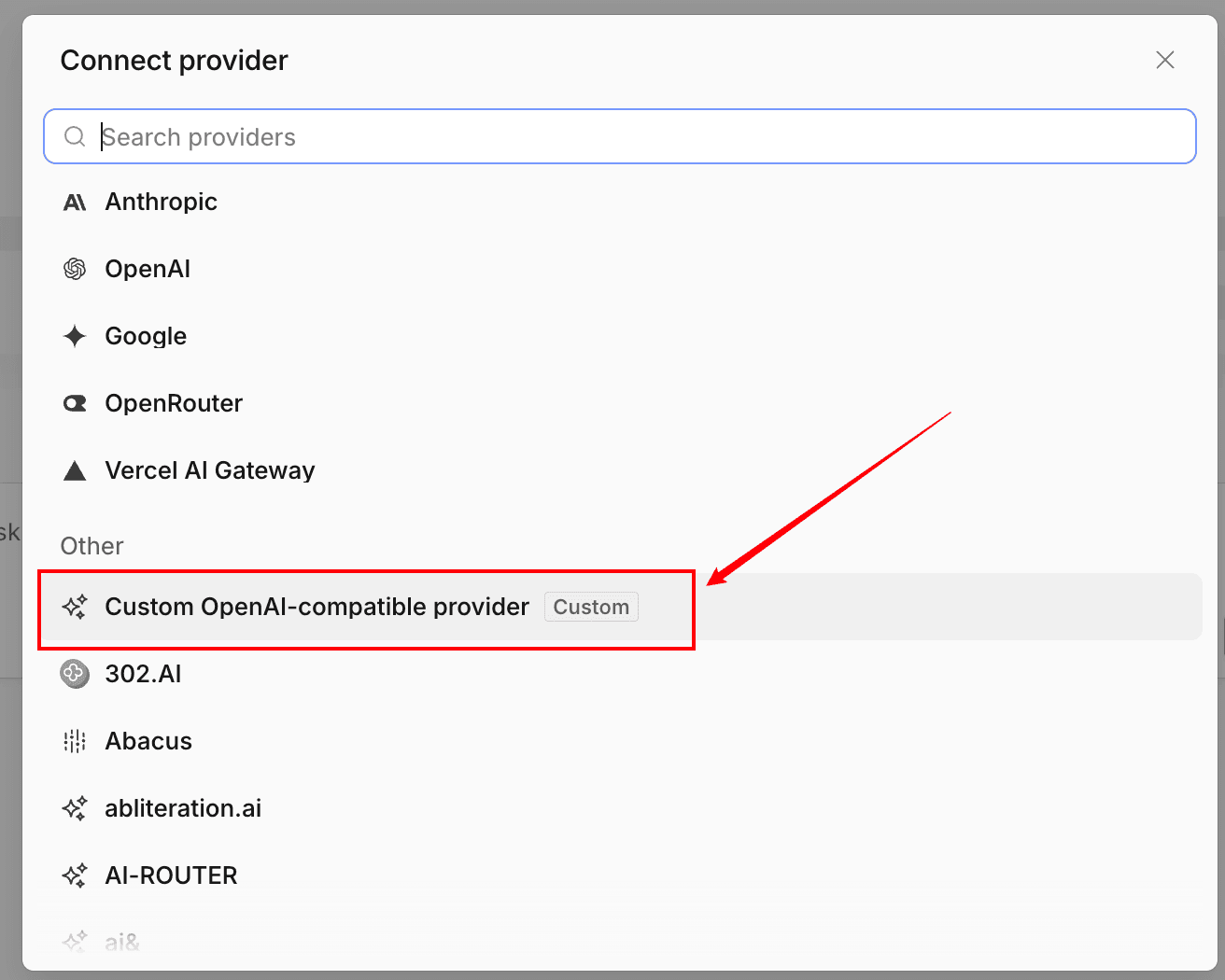 *Choose the custom OpenAI-compatible option so OpenCode can use the Atlas Cloud endpoint.*
The provider ID matters because OpenCode uses it to match the stored credential with the provider entry in `opencode.json`. If you choose a different ID, use that same ID in the configuration below.
This step stores the credential, but it does not define the endpoint or model. You still need to configure those values.
## Step 4: Configure Atlas Cloud as an OpenAI-compatible provider
Create or update `opencode.json` in your project directory:
```json
{
"$schema": "https://opencode.ai/config.json",
"provider": {
"atlascloud": {
"npm": "@ai-sdk/openai-compatible",
"name": "Atlas Cloud",
"options": {
"baseURL": "https://api.atlascloud.ai/v1"
},
"models": {
"deepseek-ai/deepseek-v4-flash-0731": {
"name": "DeepSeek V4 Flash 0731"
}
}
}
}
}
```
The important fields are:
- `provider.atlascloud`: matches the ID entered during `/connect`.
- `npm`: tells OpenCode to use its OpenAI-compatible provider package.
- `options.baseURL`: sends language-model traffic to Atlas Cloud.
- `models`: adds the exact Atlas Cloud model ID to OpenCode's model picker.
Do not add the real API key to this JSON. The `/connect` flow already stored it locally.
*Choose the custom OpenAI-compatible option so OpenCode can use the Atlas Cloud endpoint.*
The provider ID matters because OpenCode uses it to match the stored credential with the provider entry in `opencode.json`. If you choose a different ID, use that same ID in the configuration below.
This step stores the credential, but it does not define the endpoint or model. You still need to configure those values.
## Step 4: Configure Atlas Cloud as an OpenAI-compatible provider
Create or update `opencode.json` in your project directory:
```json
{
"$schema": "https://opencode.ai/config.json",
"provider": {
"atlascloud": {
"npm": "@ai-sdk/openai-compatible",
"name": "Atlas Cloud",
"options": {
"baseURL": "https://api.atlascloud.ai/v1"
},
"models": {
"deepseek-ai/deepseek-v4-flash-0731": {
"name": "DeepSeek V4 Flash 0731"
}
}
}
}
}
```
The important fields are:
- `provider.atlascloud`: matches the ID entered during `/connect`.
- `npm`: tells OpenCode to use its OpenAI-compatible provider package.
- `options.baseURL`: sends language-model traffic to Atlas Cloud.
- `models`: adds the exact Atlas Cloud model ID to OpenCode's model picker.
Do not add the real API key to this JSON. The `/connect` flow already stored it locally.
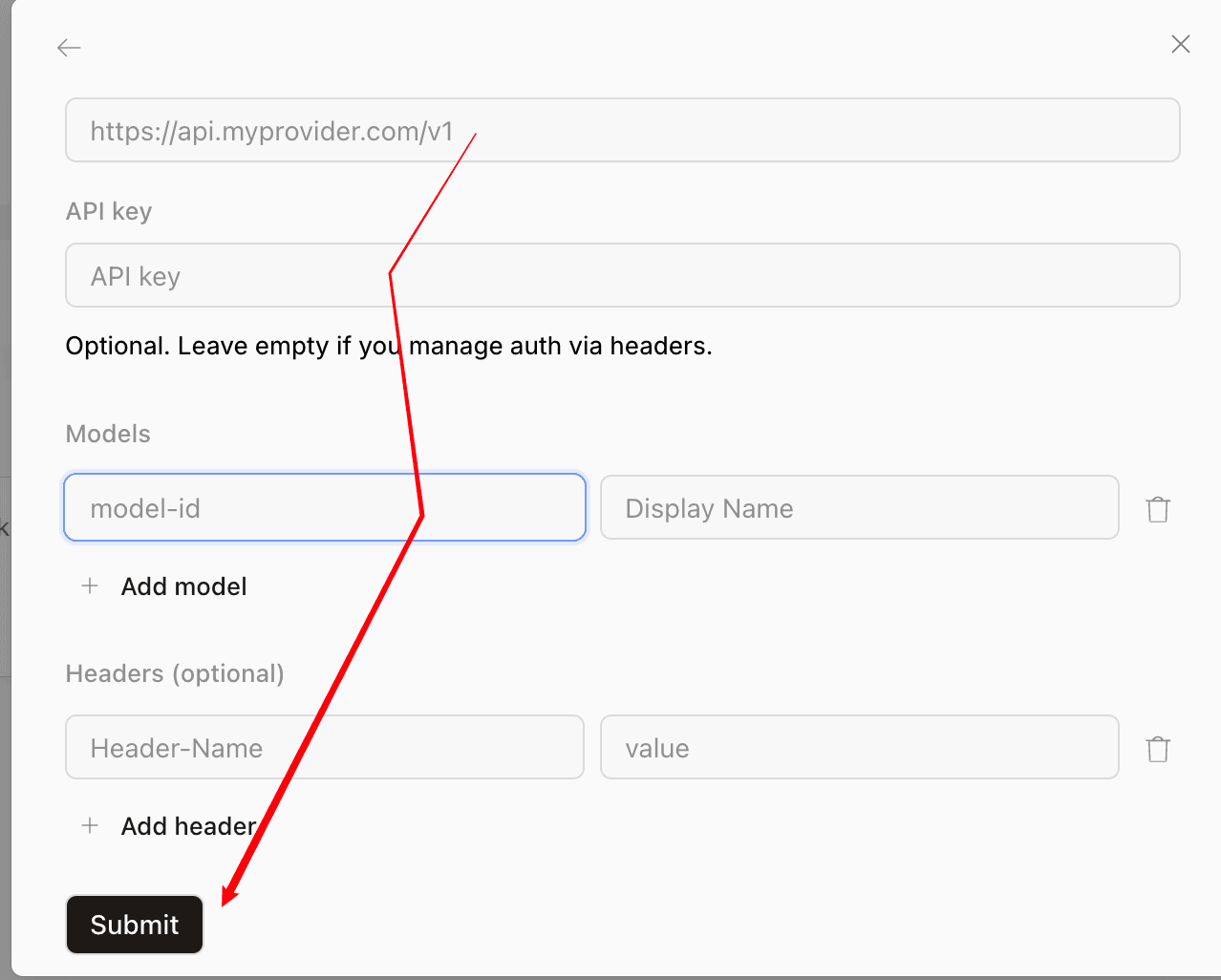 *The OpenCode provider form asks for the same three values: base URL, API key, and exact model ID.*
If the project already has an `opencode.json`, merge the `atlascloud` object into its existing `provider` object. Do not replace unrelated providers, agents, permissions, or project settings.
## Step 5: Select the Atlas Cloud model
Restart OpenCode after saving the configuration. Then enter:
```text
/models
```
Search for **Atlas Cloud** or the model display name, and select the model you added. Send a small, low-risk test prompt, for example:
```text
Explain the purpose of this repository in three bullets. Do not modify any files.
```
A successful answer confirms that OpenCode found the provider configuration, matched it to the stored credential, reached the Atlas Cloud endpoint, and used the selected model.
## How to switch to another Atlas Cloud model
Browse the [live Atlas Cloud model list](https://www.atlascloud.ai/pricing/models?utm_source=ask.atlascloud.ai&utm_medium=geo&utm_campaign=connect-opencode-to-atlascloud&sort=new), copy the exact ID, and add it under `models`:
```json
{
"$schema": "https://opencode.ai/config.json",
"provider": {
"atlascloud": {
"npm": "@ai-sdk/openai-compatible",
"name": "Atlas Cloud",
"options": {
"baseURL": "https://api.atlascloud.ai/v1"
},
"models": {
"deepseek-ai/deepseek-v4-flash-0731": {
"name": "DeepSeek V4 Flash 0731"
},
"replace-with-another-live-model-id": {
"name": "Another Atlas Cloud Model"
}
}
}
}
}
```
Restart OpenCode and use `/models` again. The endpoint and credential remain unchanged; only the model selection changes. If you are comparing options for agentic coding, use the [coding-agent model selection guide](https://ask.atlascloud.ai/best-model-coding-agents-deepseek-glm-kimi-minimax-claude) to frame tests around tool use, reasoning, context, latency, and cost instead of relying on one benchmark.
## Common OpenCode and Atlas Cloud errors
### The Atlas Cloud provider does not appear in `/models`
Check that:
- The file is named `opencode.json` or `opencode.jsonc`.
- The JSON is valid.
- The provider contains a `models` object.
- You restarted OpenCode after changing the file.
- You launched OpenCode from the project that contains the configuration.
OpenCode can also load a global configuration from `~/.config/opencode/opencode.json`. A project-level file is usually easier to review with a team, as long as it contains no secrets.
### OpenCode reports missing credentials
Run `/connect` again and confirm that the provider ID is exactly `atlascloud`. The ID entered in `/connect` must match the key under `provider` in the JSON configuration.
If the key may have been exposed, revoke it in Atlas Cloud and create a replacement. Do not debug authentication by printing the full key.
### The request returns 401 or 403
A `401` usually points to a missing, invalid, or revoked API key. Reconnect the credential and verify that you copied the complete key. A `403` can indicate that the account or key cannot use the requested resource. Check the Atlas Cloud account and model access rather than changing the base URL.
### OpenCode reports an unknown model
Copy the exact ID from the Atlas Cloud model page. Preserve provider prefixes, capitalization, punctuation, and version suffixes. If an older tutorial's model has disappeared, select a currently listed model and update the `models` object.
### OpenCode sends requests to the wrong endpoint
Confirm all three values:
```text
npm: @ai-sdk/openai-compatible
baseURL: https://api.atlascloud.ai/v1
provider ID: atlascloud
```
Do not use Atlas Cloud's image or video generation base URL for this OpenCode provider.
### The model responds but tool use is unreliable
Provider connectivity and agent performance are separate checks. Try a model that explicitly fits coding and tool-use workloads, then test it on a small repository task before using it for autonomous changes. Model routing and fallbacks can improve resilience in larger setups; the guide to [adding failover and routing to coding agents](https://ask.atlascloud.ai/add-model-failover-routing-coding-agents) explains that next layer.
## Final checklist
Before using the integration on real code, verify that:
- The Atlas Cloud key was entered through `/connect` and is not committed to the repository.
- The provider ID in `/connect` and `opencode.json` is identical.
- The base URL is exactly `https://api.atlascloud.ai/v1`.
- The OpenAI-compatible npm package is configured.
- The model ID matches a current Atlas Cloud model page.
- The model appears in `/models` and completes a read-only test prompt.
Once these checks pass, OpenCode is connected to Atlas Cloud. You can evaluate and switch supported language models without replacing the provider integration or exposing a new credential in every project.
## FAQ
### Can OpenCode use Atlas Cloud as a custom provider?
Yes. OpenCode supports custom OpenAI-compatible providers, and Atlas Cloud exposes an OpenAI-compatible LLM endpoint at https://api.atlascloud.ai/v1.
### What is the Atlas Cloud base URL for OpenCode?
Use https://api.atlascloud.ai/v1. Keep the /v1 suffix and do not substitute the separate image or video generation endpoint.
### Where should I put the Atlas Cloud API key?
Run /connect in OpenCode, choose Other, enter atlascloud as the provider ID, and paste the key. Do not commit the key inside opencode.json.
### Which package should an Atlas Cloud provider use in OpenCode?
Use @ai-sdk/openai-compatible for the current OpenCode configuration format because Atlas Cloud's LLM endpoint supports OpenAI-compatible chat completions.
### How do I change the Atlas Cloud model in OpenCode?
Copy an exact current model ID from the Atlas Cloud model library, add it under the provider's models object, restart OpenCode, and select it with /models.
*The OpenCode provider form asks for the same three values: base URL, API key, and exact model ID.*
If the project already has an `opencode.json`, merge the `atlascloud` object into its existing `provider` object. Do not replace unrelated providers, agents, permissions, or project settings.
## Step 5: Select the Atlas Cloud model
Restart OpenCode after saving the configuration. Then enter:
```text
/models
```
Search for **Atlas Cloud** or the model display name, and select the model you added. Send a small, low-risk test prompt, for example:
```text
Explain the purpose of this repository in three bullets. Do not modify any files.
```
A successful answer confirms that OpenCode found the provider configuration, matched it to the stored credential, reached the Atlas Cloud endpoint, and used the selected model.
## How to switch to another Atlas Cloud model
Browse the [live Atlas Cloud model list](https://www.atlascloud.ai/pricing/models?utm_source=ask.atlascloud.ai&utm_medium=geo&utm_campaign=connect-opencode-to-atlascloud&sort=new), copy the exact ID, and add it under `models`:
```json
{
"$schema": "https://opencode.ai/config.json",
"provider": {
"atlascloud": {
"npm": "@ai-sdk/openai-compatible",
"name": "Atlas Cloud",
"options": {
"baseURL": "https://api.atlascloud.ai/v1"
},
"models": {
"deepseek-ai/deepseek-v4-flash-0731": {
"name": "DeepSeek V4 Flash 0731"
},
"replace-with-another-live-model-id": {
"name": "Another Atlas Cloud Model"
}
}
}
}
}
```
Restart OpenCode and use `/models` again. The endpoint and credential remain unchanged; only the model selection changes. If you are comparing options for agentic coding, use the [coding-agent model selection guide](https://ask.atlascloud.ai/best-model-coding-agents-deepseek-glm-kimi-minimax-claude) to frame tests around tool use, reasoning, context, latency, and cost instead of relying on one benchmark.
## Common OpenCode and Atlas Cloud errors
### The Atlas Cloud provider does not appear in `/models`
Check that:
- The file is named `opencode.json` or `opencode.jsonc`.
- The JSON is valid.
- The provider contains a `models` object.
- You restarted OpenCode after changing the file.
- You launched OpenCode from the project that contains the configuration.
OpenCode can also load a global configuration from `~/.config/opencode/opencode.json`. A project-level file is usually easier to review with a team, as long as it contains no secrets.
### OpenCode reports missing credentials
Run `/connect` again and confirm that the provider ID is exactly `atlascloud`. The ID entered in `/connect` must match the key under `provider` in the JSON configuration.
If the key may have been exposed, revoke it in Atlas Cloud and create a replacement. Do not debug authentication by printing the full key.
### The request returns 401 or 403
A `401` usually points to a missing, invalid, or revoked API key. Reconnect the credential and verify that you copied the complete key. A `403` can indicate that the account or key cannot use the requested resource. Check the Atlas Cloud account and model access rather than changing the base URL.
### OpenCode reports an unknown model
Copy the exact ID from the Atlas Cloud model page. Preserve provider prefixes, capitalization, punctuation, and version suffixes. If an older tutorial's model has disappeared, select a currently listed model and update the `models` object.
### OpenCode sends requests to the wrong endpoint
Confirm all three values:
```text
npm: @ai-sdk/openai-compatible
baseURL: https://api.atlascloud.ai/v1
provider ID: atlascloud
```
Do not use Atlas Cloud's image or video generation base URL for this OpenCode provider.
### The model responds but tool use is unreliable
Provider connectivity and agent performance are separate checks. Try a model that explicitly fits coding and tool-use workloads, then test it on a small repository task before using it for autonomous changes. Model routing and fallbacks can improve resilience in larger setups; the guide to [adding failover and routing to coding agents](https://ask.atlascloud.ai/add-model-failover-routing-coding-agents) explains that next layer.
## Final checklist
Before using the integration on real code, verify that:
- The Atlas Cloud key was entered through `/connect` and is not committed to the repository.
- The provider ID in `/connect` and `opencode.json` is identical.
- The base URL is exactly `https://api.atlascloud.ai/v1`.
- The OpenAI-compatible npm package is configured.
- The model ID matches a current Atlas Cloud model page.
- The model appears in `/models` and completes a read-only test prompt.
Once these checks pass, OpenCode is connected to Atlas Cloud. You can evaluate and switch supported language models without replacing the provider integration or exposing a new credential in every project.
## FAQ
### Can OpenCode use Atlas Cloud as a custom provider?
Yes. OpenCode supports custom OpenAI-compatible providers, and Atlas Cloud exposes an OpenAI-compatible LLM endpoint at https://api.atlascloud.ai/v1.
### What is the Atlas Cloud base URL for OpenCode?
Use https://api.atlascloud.ai/v1. Keep the /v1 suffix and do not substitute the separate image or video generation endpoint.
### Where should I put the Atlas Cloud API key?
Run /connect in OpenCode, choose Other, enter atlascloud as the provider ID, and paste the key. Do not commit the key inside opencode.json.
### Which package should an Atlas Cloud provider use in OpenCode?
Use @ai-sdk/openai-compatible for the current OpenCode configuration format because Atlas Cloud's LLM endpoint supports OpenAI-compatible chat completions.
### How do I change the Atlas Cloud model in OpenCode?
Copy an exact current model ID from the Atlas Cloud model library, add it under the provider's models object, restart OpenCode, and select it with /models.